
 ART GENERATOR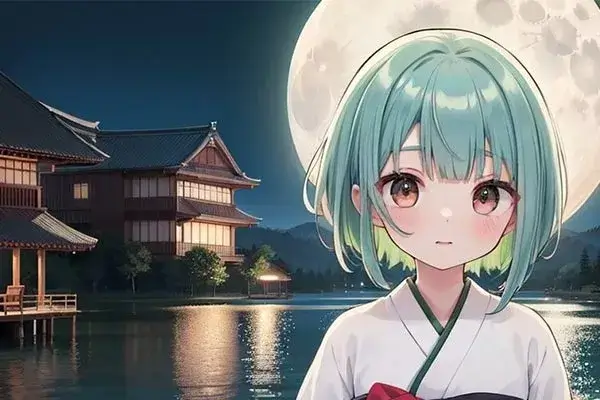
 EXPLORE


 TUTORIAL
How To
Learn how to use AnimeGenius AI tool with detail text & video tutorial.
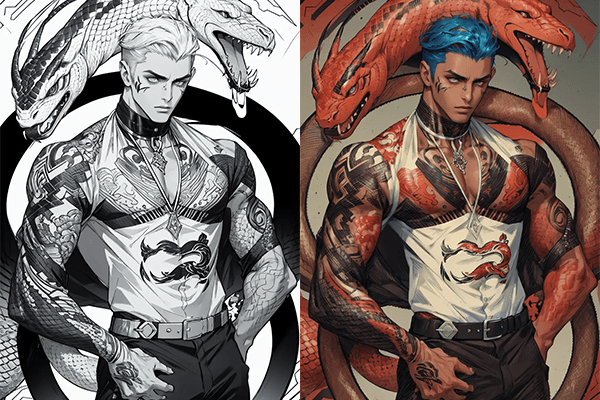
Use Case
Find the hidden features of AI text-to-image generators and learn how to master AI for creative uses.
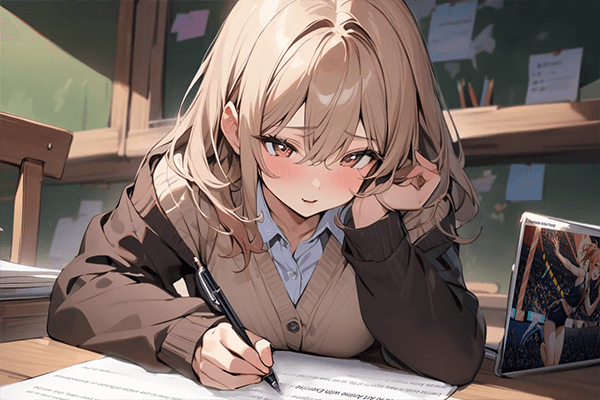
Prompt Guide
We provide detailed prompt tutorials to help you use AI like a pro

Parameter
Learn the usage of Stable Diffusion parameters and get more professional AI skills in generation.
Detailed Introduction: Eight Generation Methods of Image to Image
1. Quickly grasp for eight generation methods of 'Image to Image'
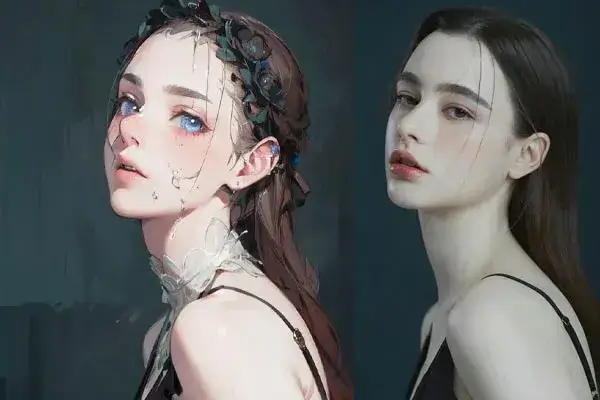
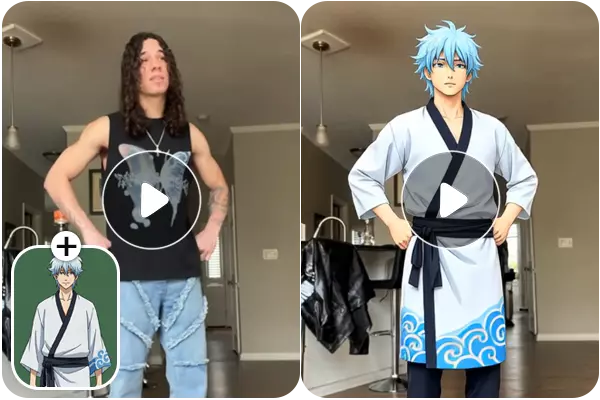
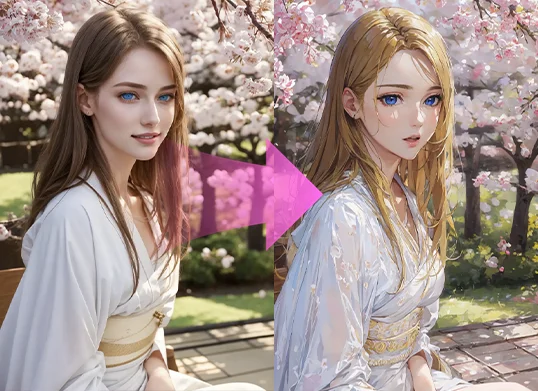
Smart Repaint: Convert realistic image to anime style, and add more details.
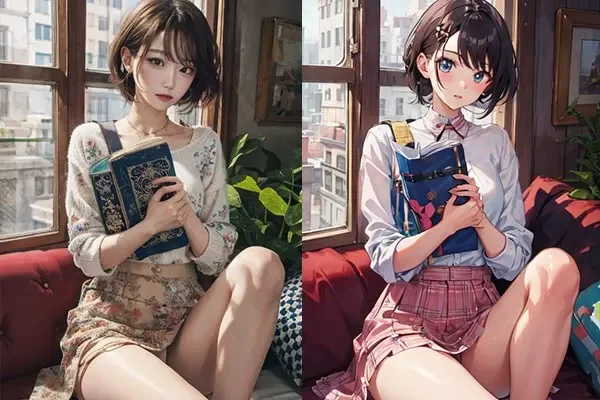
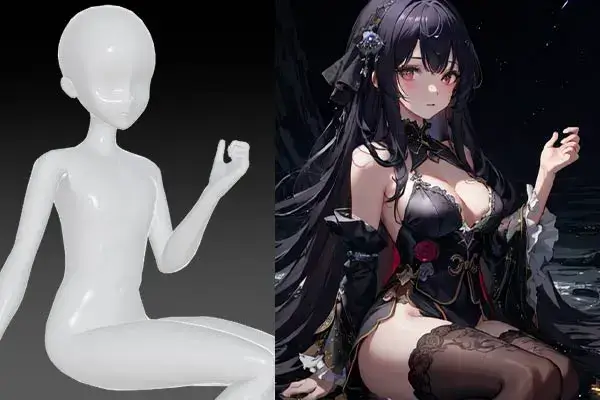
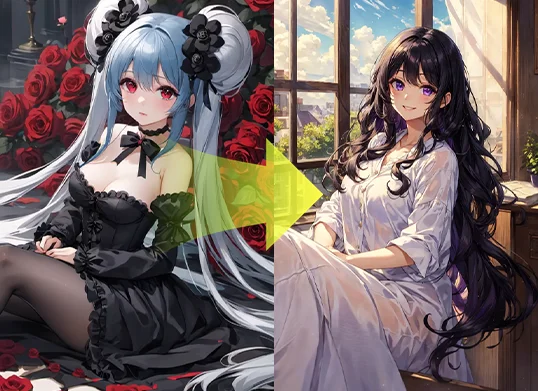
Pose recognition: Redraw image based on the reference character's pose.
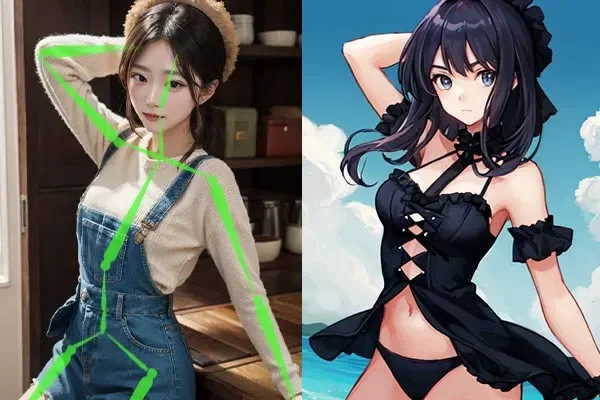
Edge Repaint: Based canny、repaint and colorize line art
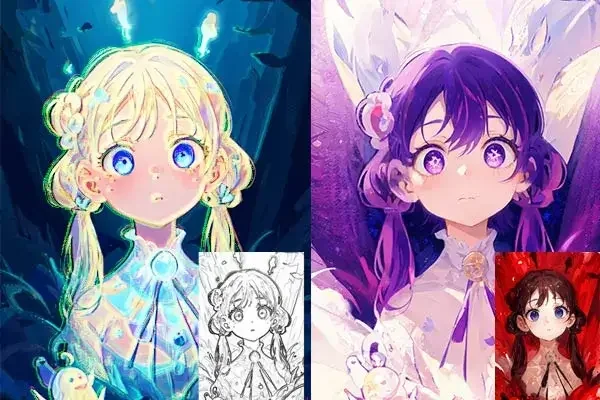
Line Repaint: Repaint image based on the lines of original image
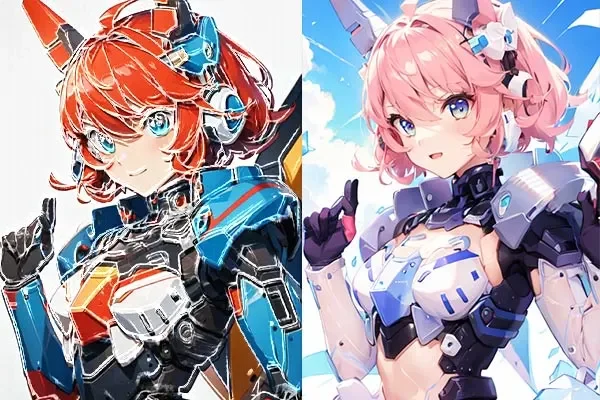
Coloring Line Art: Colorize the sketch
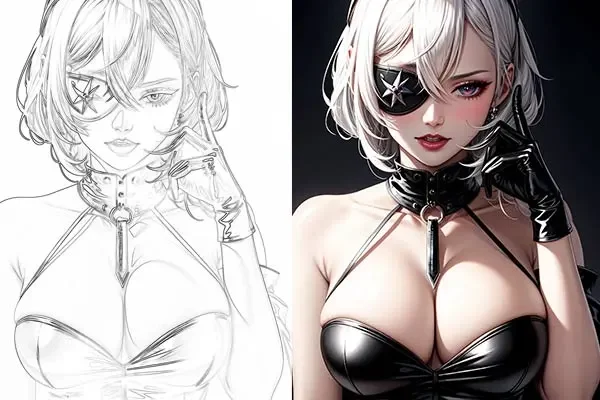
Style Fixation: Retain the style of the image and add other details
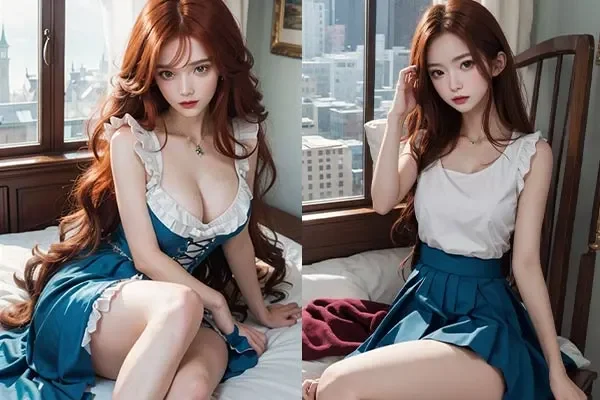
Expression Control: Redraw image based on the reference character's facial expression
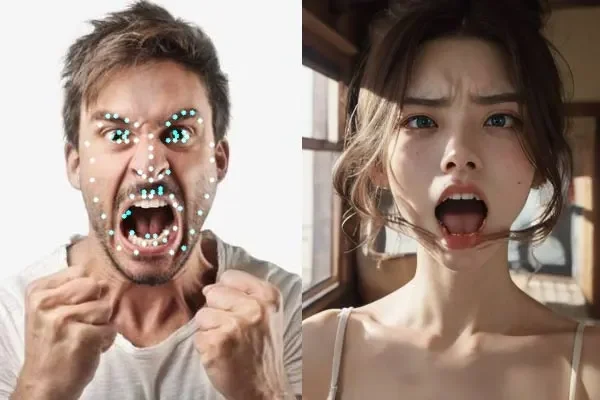
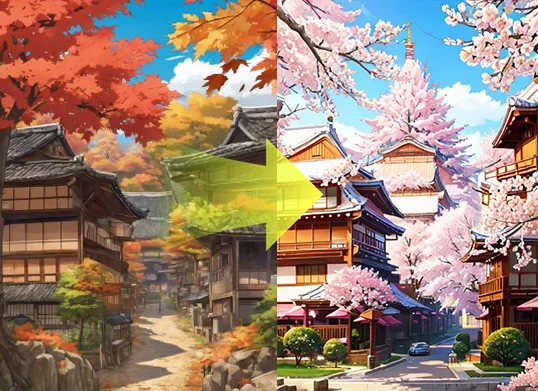
Scene Repaint: Repaint scene of the image based on the original image
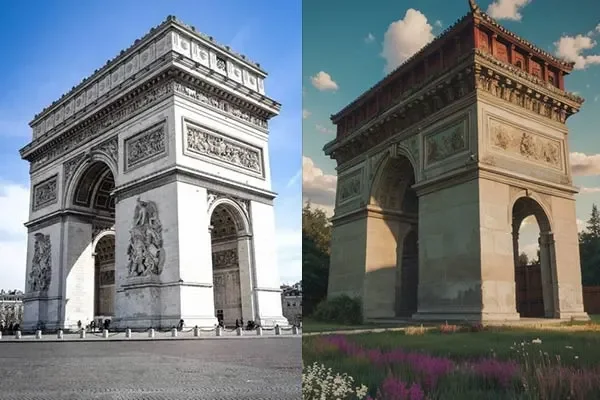
2. The difference among 'Repaint'.
When it comes to 'Repaint', there are three features that support this: 'Edge Repaint', 'Corloring Line Art' and 'Line Repaint'.
You may be wondering what the difference is between the three of them. Here are some comparison images for your better understanding.
Feature | Repaint Image | Coloring Line Art | Line Repaint |
|---|
Coloring sketch
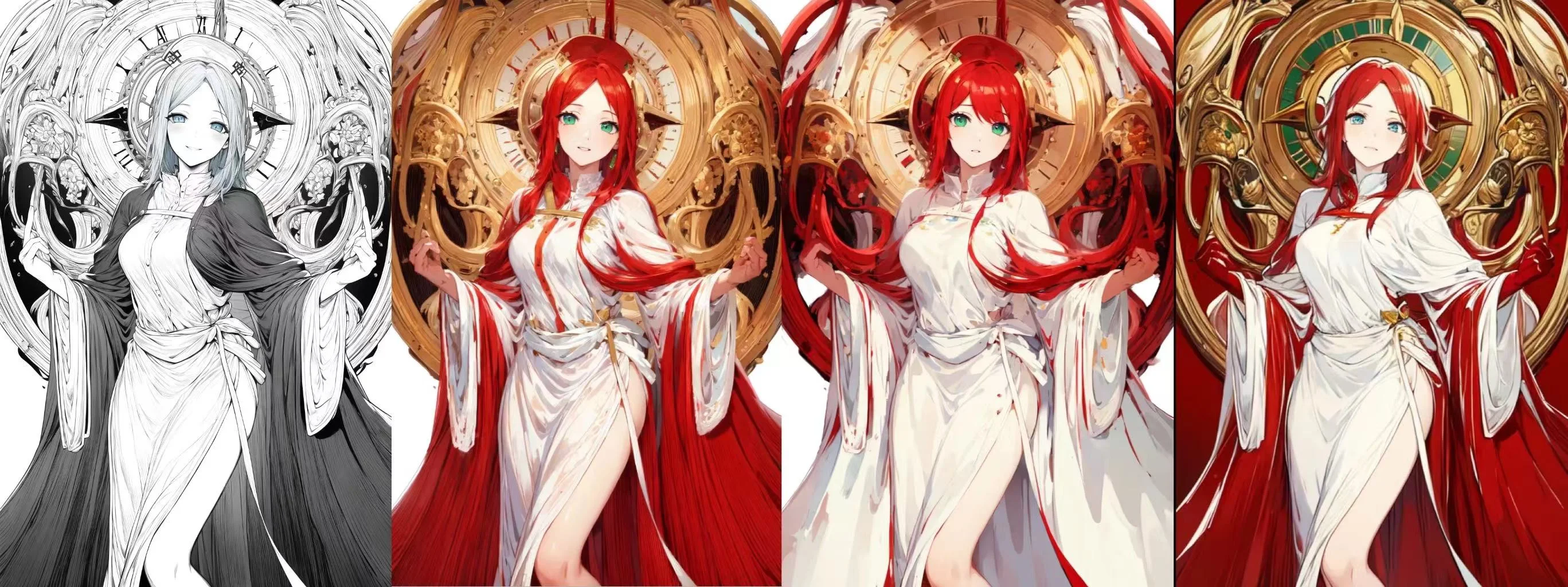
As for 'coloring sketch', all three of them can support.
But from the comparison images below, we can easily see that 'Coloring Line Art' works best.
(Original image---Coloring Line Art---Line Repaint---Edge Repaint)
Repaint image
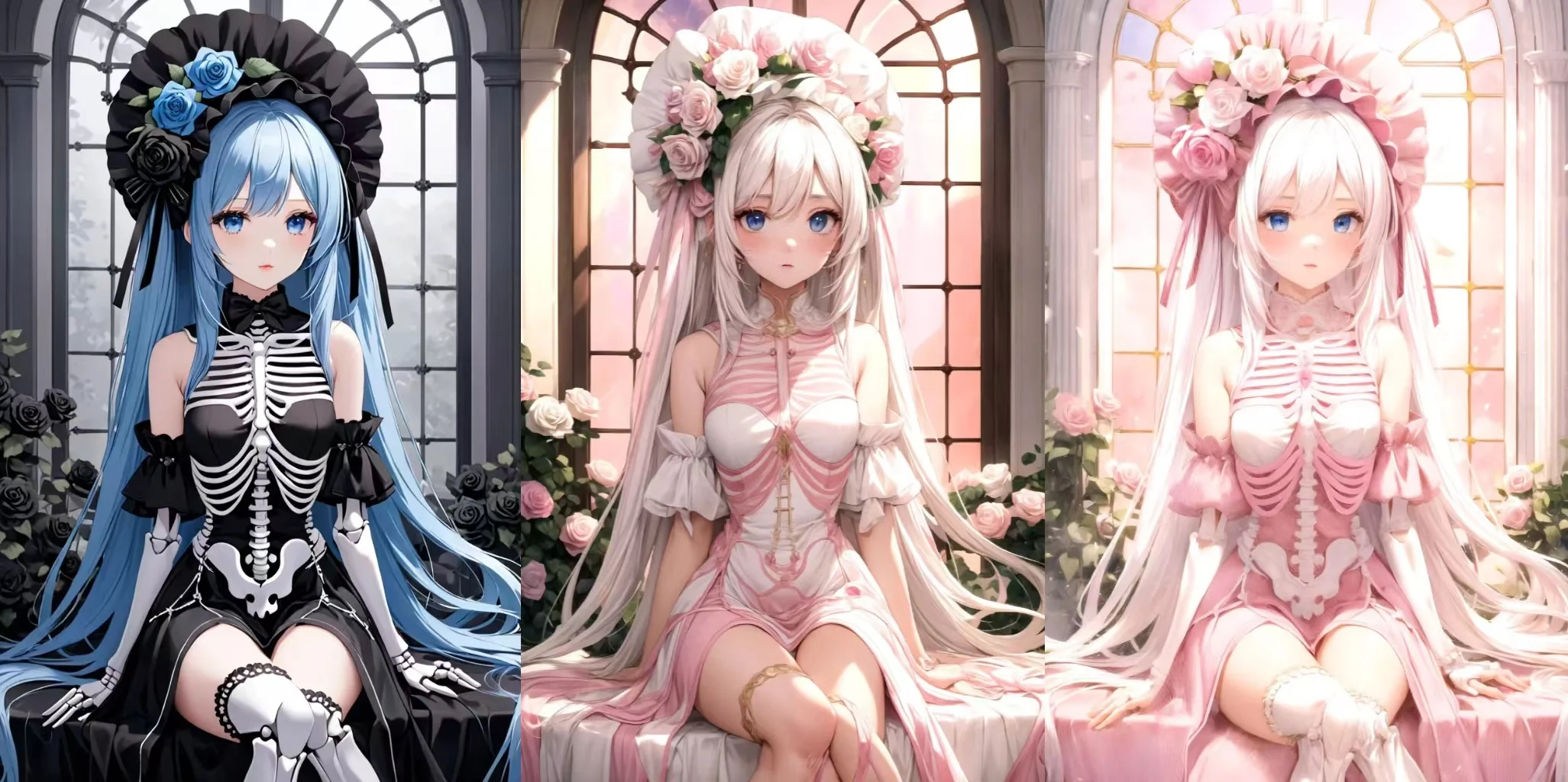
As for 'repaint image', only teo features can support, which is 'Edge Repaint' and 'Line Repaint'.
You could see that 'Line Repaint' will be closer to the original image.
(Original image---Edge Repaint---Line Repaint)
3. Applications of Generation Methods
Realistic image to anime style
Steps:
Click
'Smart Repaint'
Upload
realistic image
Choose
model and lora
Write
prompts
Click
Generate
Reference:
Prompts--(masterpiece), best quality, expressive eyes, perfect face, Black hair, curly hair, purple eyes, study, sunshine, white window screens, wind, smiling face, gentle smiling face
Model & lora-- ReamuMix & Add More Details(Detail Enhancer)
Effect:
Scene Repaint
Steps:
Click
'Scene Repaint'
Upload
your scene image
Write
prompts
Click
Generate
Reference:
Prompts--(classic style), no_humans, (sakura tree),scenery, outdoors, sky, asian_architecture, tree, architecture, flowers, day, cloud, building
Effect:
Pose Recognition
Steps:
Click
'Pose Recognition'
Upload
reference character's pose image
Choose
model and lora
Write
prompts
Click
Generate
Reference:
Prompts--(masterpiece), best quality, expressive eyes, perfect face, Black hair, curly hair, purple eyes, study, sunshine, white window screens, wind, smiling face, gentle smiling face
Model & lora-- HIJKLMix Anime & Add More Details(Detail Enhancer)
Effect:
You also can use our 'Pose to Image' feature to generate images based on your reference character's pose. But you can customize the pose of the model using 'Pose to Image' feature.
4. Attention for some tips
4.1 General tips:
- Don't just upload a image without writing prompts.
- If you write prompts that are completely unrelated to the original image, you will get a poor quality image.
- It is almost impossible to completely change the content of an image using prompts.
4.2 Specific tips:
- [Pose Recognition]
- Write prompts to describe your pose: This doesn't mean that it's enough for you to upload a image of the pose, you'd better add the appropriate description of the pose inside the prompts as well.
- Choose poses that are easy to describe: If your pose is a bit complicated, then the AI may not be able to understand it. That's why AI generates bad hand.
- [Scene Repaint]
- The prompt should include a description of the original image's scene: If you just write the style prompts you want, the AI may generate a completely different image.
- The composition and layout should not differ too much: If not, the output image may be not meet your expectation.
5. Limitations for Image to Image
We apologize for not being able to provide the following features, but that doesn't affect you to generate high quality images.
Not support SDXL model
No composition for multi-character images
6. Conclusion
Hopefully you've have a deeper understanding of Image to Image feature of AnimeGenius. Just use eight features to create your customized images.
Experience more gameplay options in AnimeGenius
Enjoy it!