
 ART GENERATOR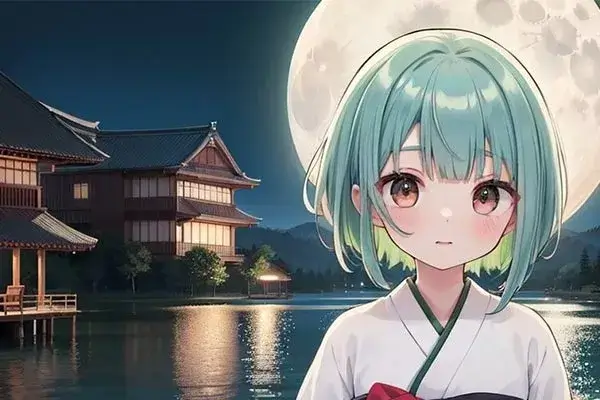
 EXPLORE


 TUTORIAL
How To
Learn how to use AnimeGenius AI tool with detail text & video tutorial.
Use Case
Find the hidden features of AI text-to-image generators and learn how to master AI for creative uses.
Prompt Guide
We provide detailed prompt tutorials to help you use AI like a pro

Parameter
Learn the usage of Stable Diffusion parameters and get more professional AI skills in generation.
Tutorial: How to create multi-person images using Text to Image?
1. Image Composition Feature
Why is it hard to create multiple characters in one AI art?
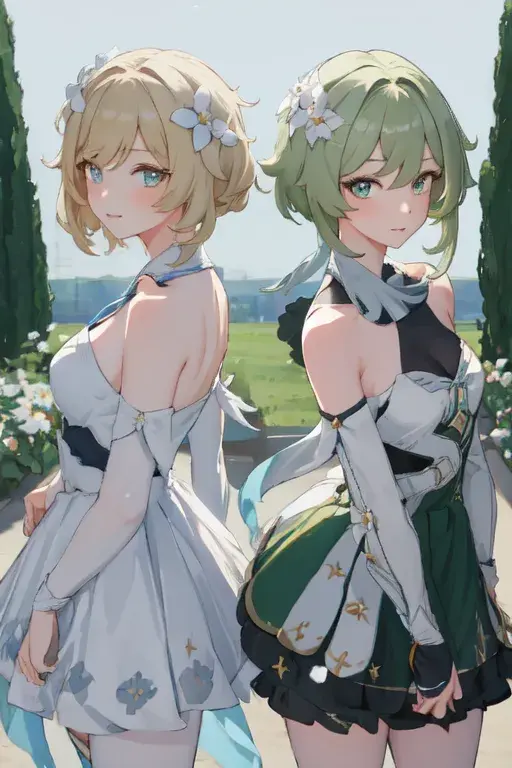
If you've been struggling to create high-quality AI art for multi characters, you've come to the right place. If you write all the prompts together, for multi-person images, the AI may not be able to pinpoint the prompts for different characters. That's why we need to partition and write the prompts for different characters in the corresponding places, so that the details of each generated character are better.
But if you use AnimeGenius's Image Composition feature, you can solve this problem. In this tutorial, we will teach you in detail how to use the Image Composition feature to create multi-person images.
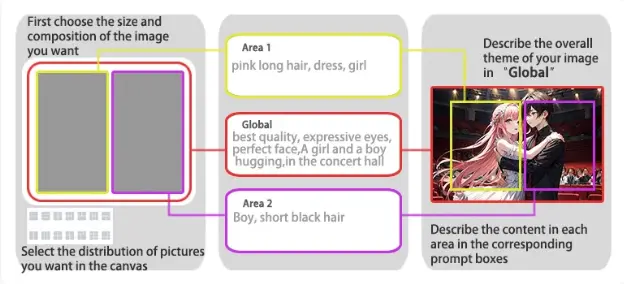
Introduction of image composition feature
Usually when we generate an image, we write the scenery, character description and style of this image all together. In contrast, partitioned 'Text to Image' requires us to write different ptompts in different zones.
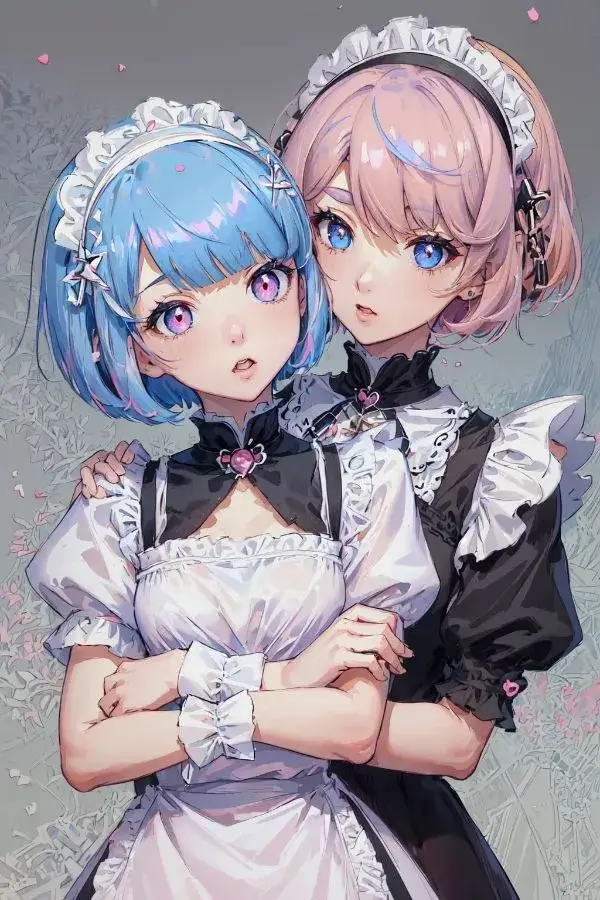
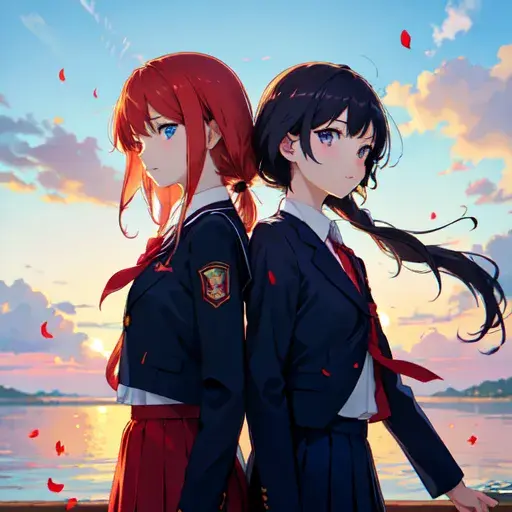
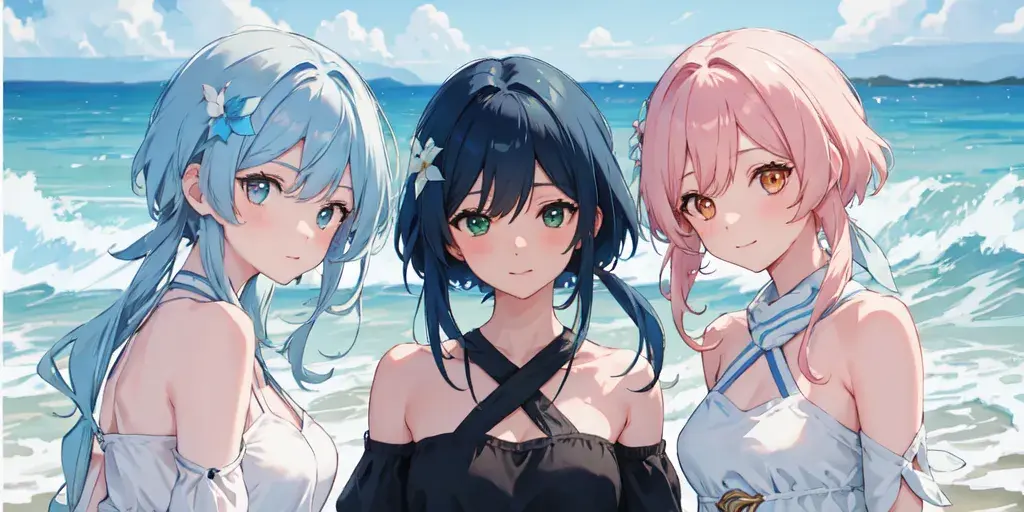
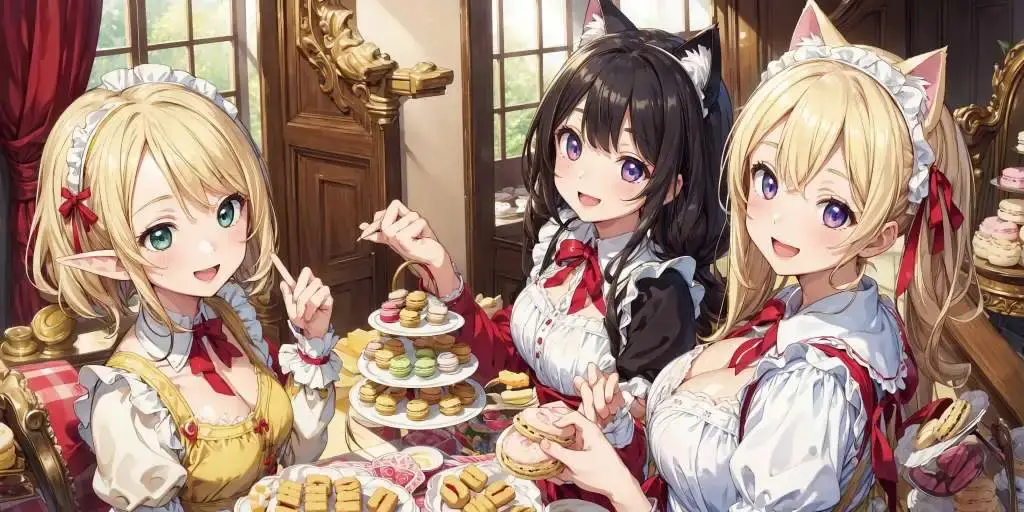
Examples
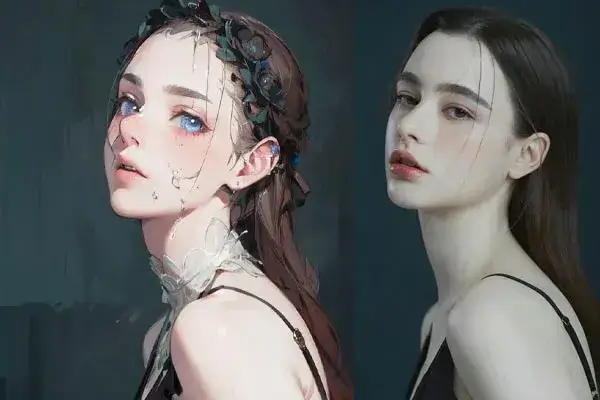
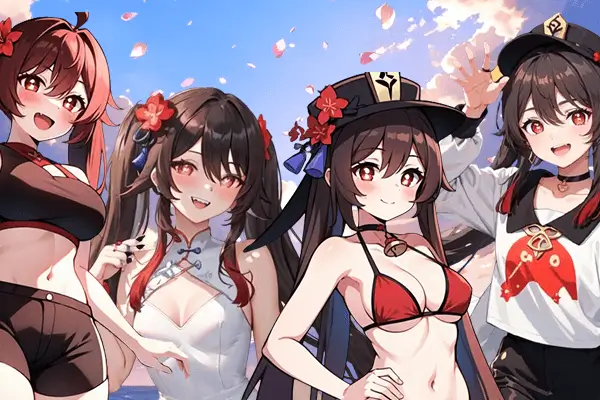
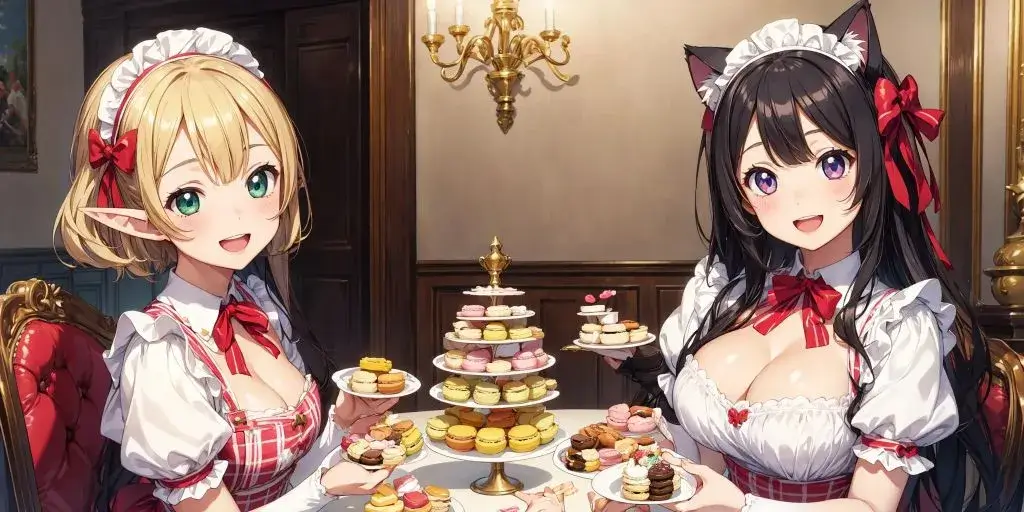
Two characters
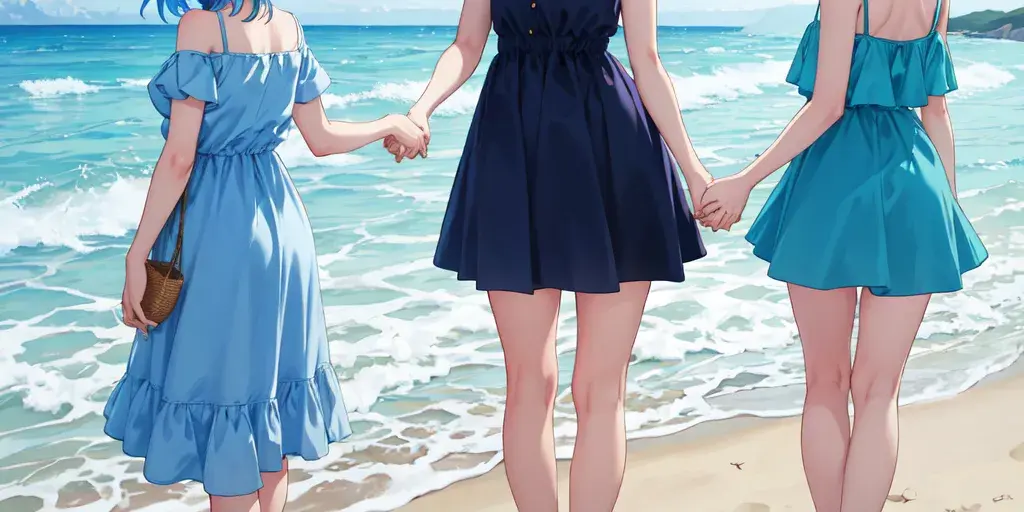
Three characters
2. Basic steps to create multi-person images
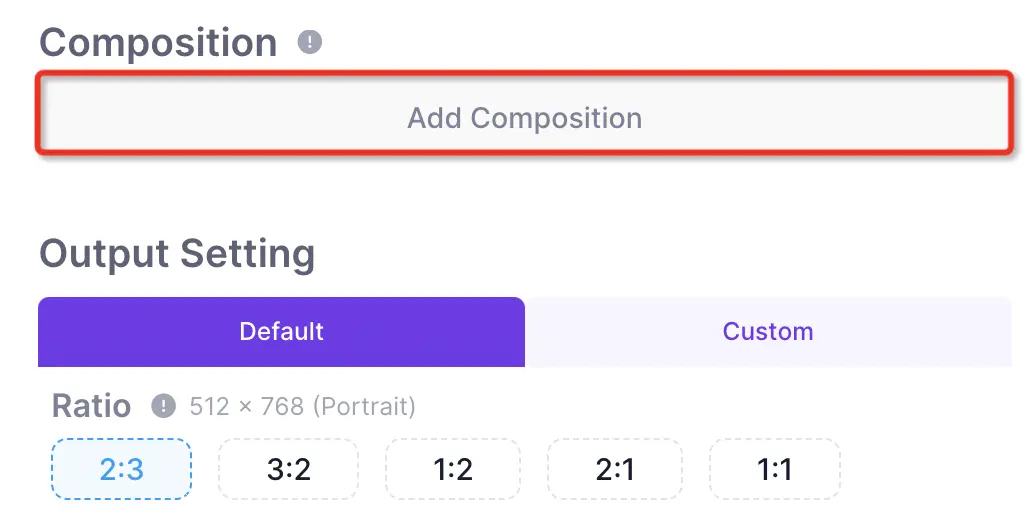
Step 1: Click 'add composition'
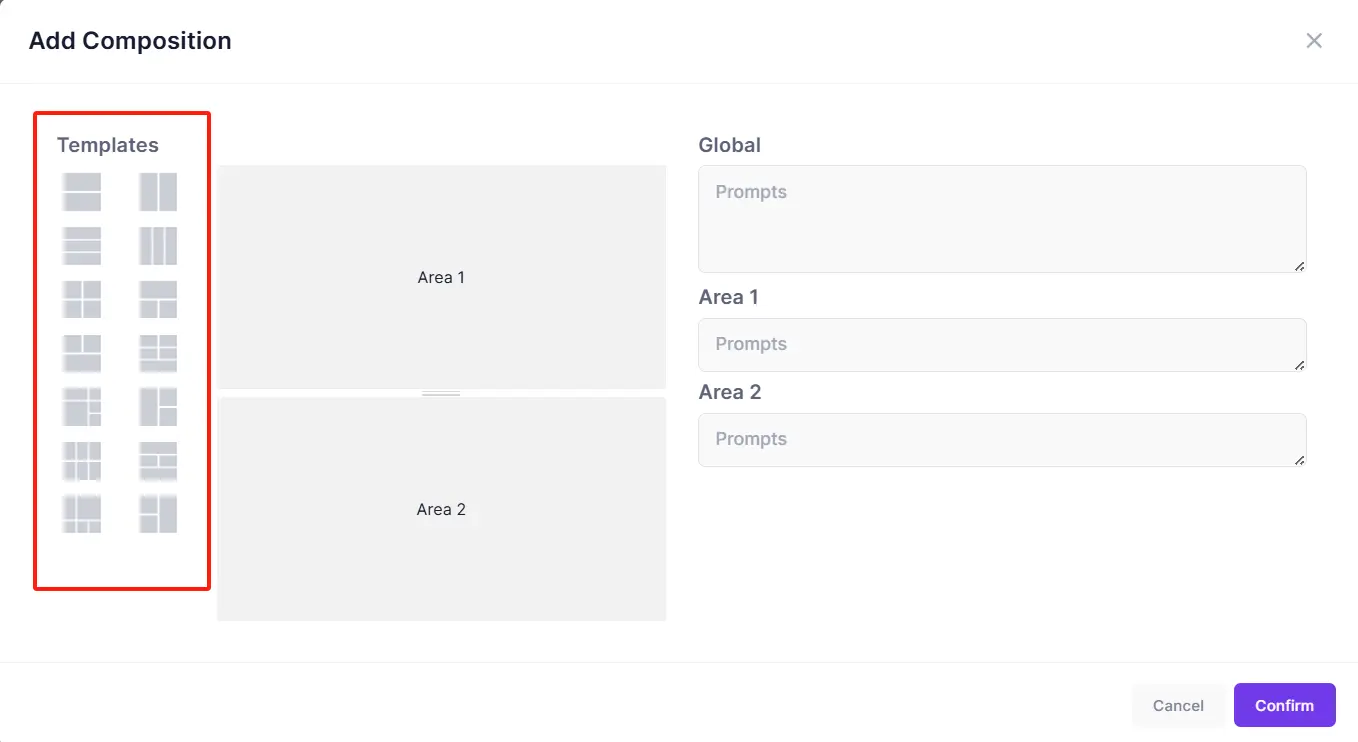
Step 2: Choose composition
As you can see, AnimeGenius offers a wide variety of templates that you can arbitrarily choose based on the style of your desired image.
Step 3: Write down prompts separately
When you're done selecting the composition, you'll see 'Global' and 'Area' next to it, and you'll need to write down the prompts in the corresponding places.
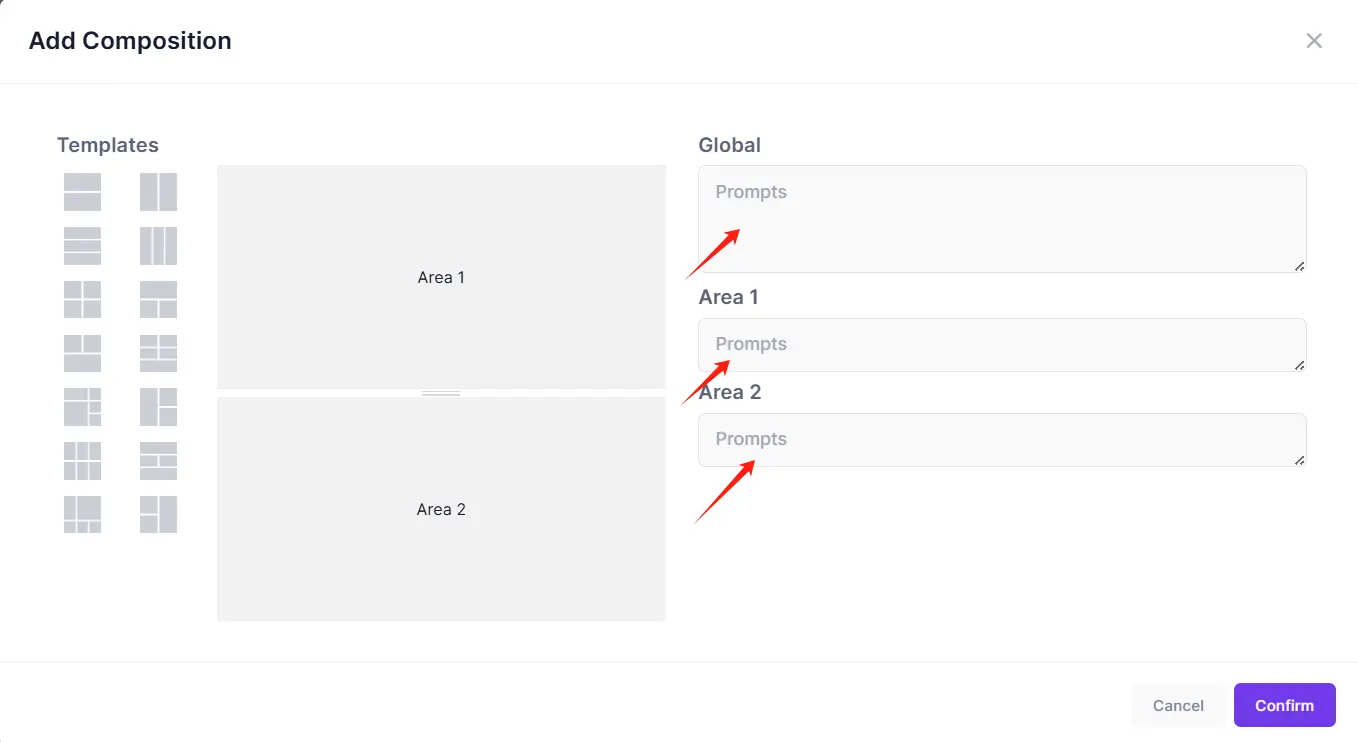
Global
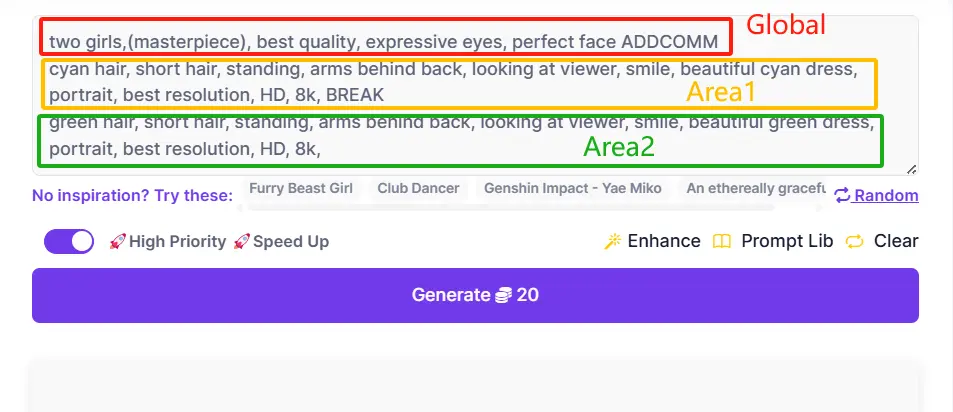
In this area, you can write down the number of characters you expect in the image, as well as the overall setting, etc.
Area 1/2...
In this area, you need to write down detailed descriptions of the different characters separately so that the AI can generate more accurate images.
After you've finished writing, the interface of Text to Image will look like this.
Step 4: Choose model and lora
This is a common step for your generation, which adds more details for your characters.
After finishing three steps, you could click 'Generate' as usual.
Attention for some tips
In order to make your generated images perfect, here are some tips for generating images you need to take note of.
Write down specific figures of characters in 'Global'
In 'Global' area, you need to write down the exact number of characters. Otherwise, the AI is likely to generate only one person.
No figures in 'Area 1'& 'Area 2'
In the past, when generating a single-person image, we usually wrote "1 girl" in the prompt. But when it comes to multi-person image, we don't need to write that in Area.
Similarities of Loras
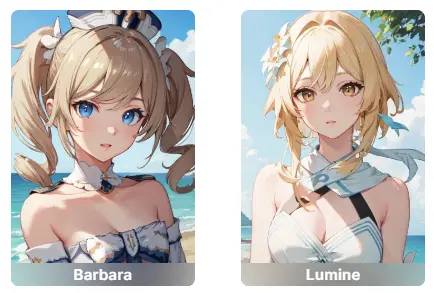
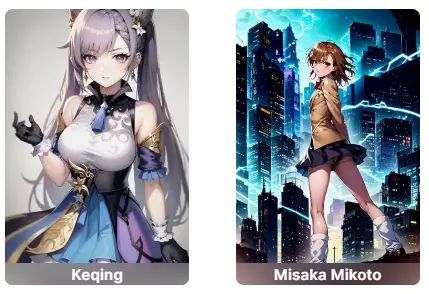
For the model selection can only be one, but we could choose more than one lora. Because the effect of loras will be blended together, so when choosing the lora, try not to choose the style of the lora that is too different, or else your picture will look wired.
Yes:
No:
Choose appropriate ratio according to your composition
For example, if you want to generate three-person image, then when you choose the template for the vertical composition, in order to have no missing parts of the details of all three characters, you could choose 1:2 ratio.
Yes: 2:1 ratio for horizontal composition
No: 2:1 ratio for vertical composition
Choose appropriate resolusion
When you are generating images, you may find that the details of the image are blurred. Then this time, you need to adjust the resolution.
Scene matching for compositions
When you choose the horizontal composition, you may wonder how you can get two people one in the top area and another one in the bottom area. This is the time when you need to think about the scene that this kind of composition is matched to.
Yes: Top and bottom template for this
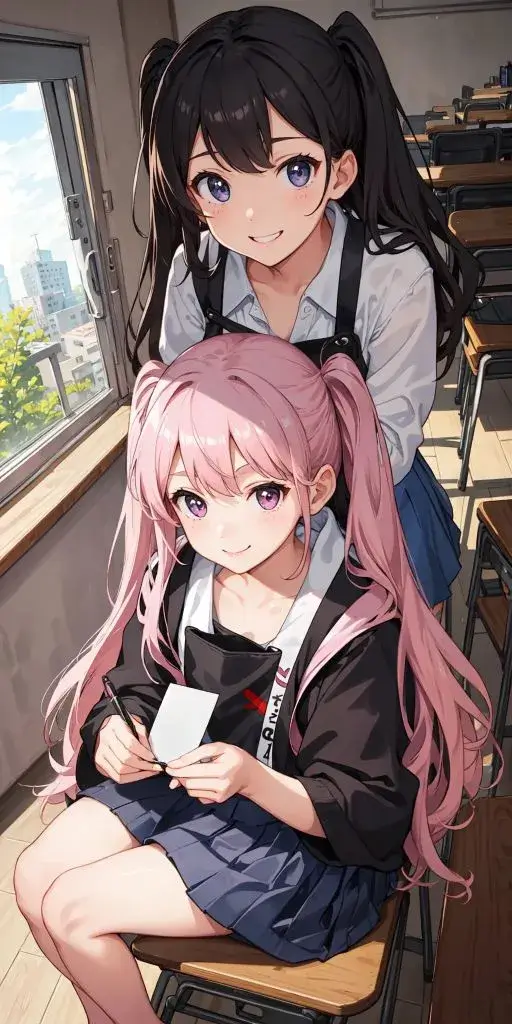
No: Right and left template for this
4. What we can't do for multi-person images?
We're sorry that we can't offer these two features at the moment, but we're always optimizing our product and we'll bring you a better experience in the near future.
SDXL does't support Composition
For partitioning to generate images, if you choose the SDXL model, then it can't be partitioned. But the models of Normal is fully supported.
Lora cannot be used separately
Our Lora effect is a blended, that means that no matter how many characters you have in your image, then they will all get the same effect of Lora. So if you want to use different Lora for different characters, this is not supported.
5. Conclusion
In the above article, we have talked in detail about the steps of generating multi-person images and what can be done to make it more delicate. However, there are still some optimizations that can be made to our product, we believe that we will bring you guys a perfect experience in the future.
Try AnimeGenius Now
Enjoy it!