
 ART GENERATOR
 EXPLORE


 TUTORIAL
How To
Learn how to use AnimeGenius AI tool with detail text & video tutorial.
Use Case
Find the hidden features of AI text-to-image generators and learn how to master AI for creative uses.
Prompt Guide
We provide detailed prompt tutorials to help you use AI like a pro

Parameter
Learn the usage of Stable Diffusion parameters and get more professional AI skills in generation.
How to customize poses for your character using AI?
1. Initial understanding of Pose to Image
After clicking the 'Pose to Image' , you can see two options: 'Upload' and 'Make Pose'. For your deeper understanding, we will introduce in detail below.
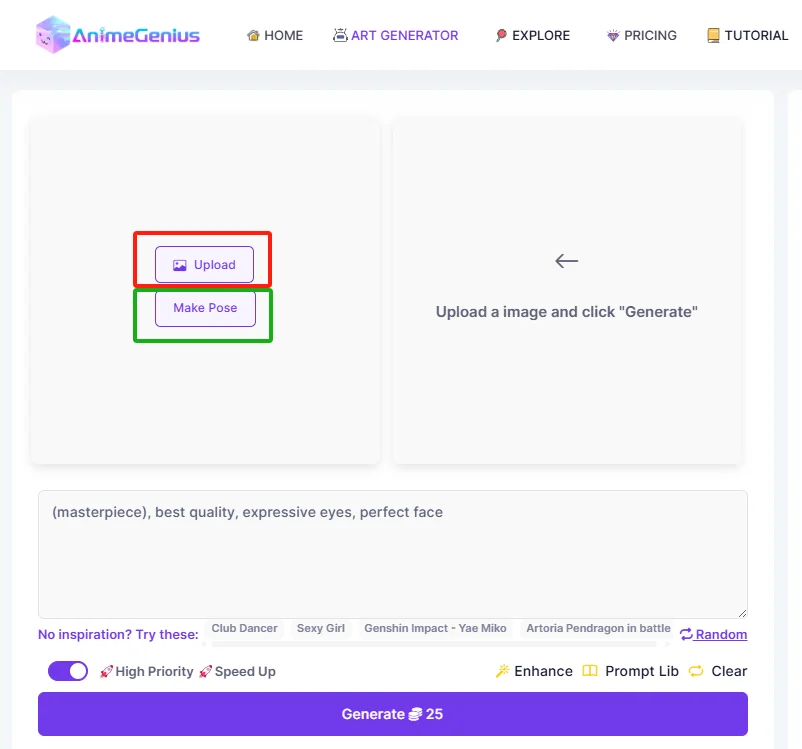
Upload
'Upload' is for your own pre-saved reference images.
Make Pose
'Make Pose' is for choosing our existing pose models and adjusting relevant poses. And after clicking, there are some set options in it.
a. Poses
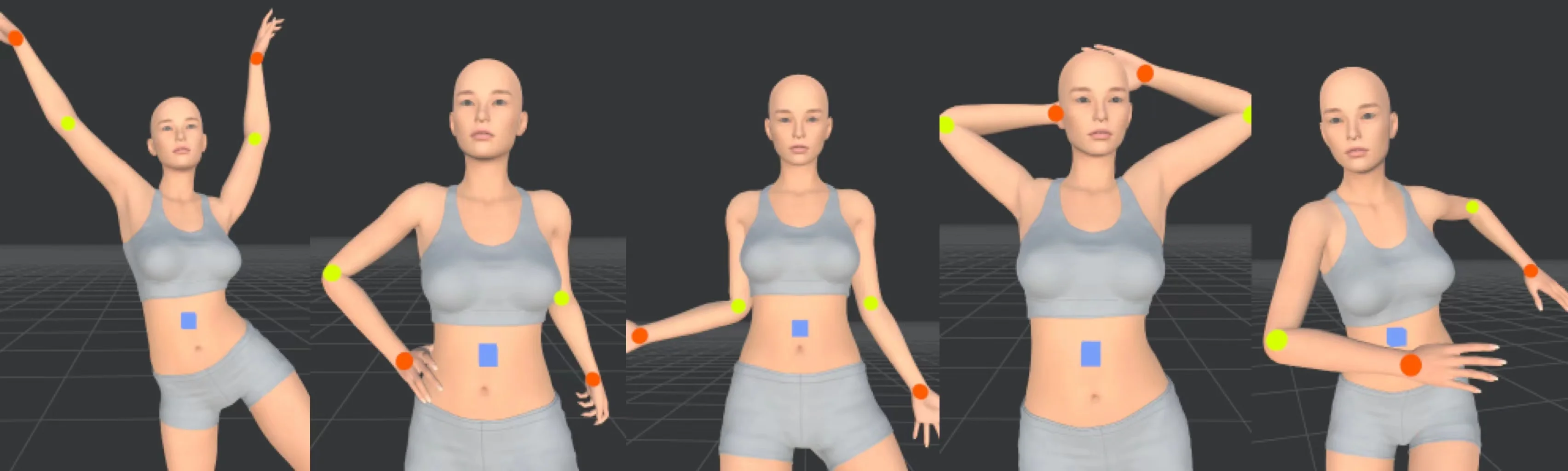
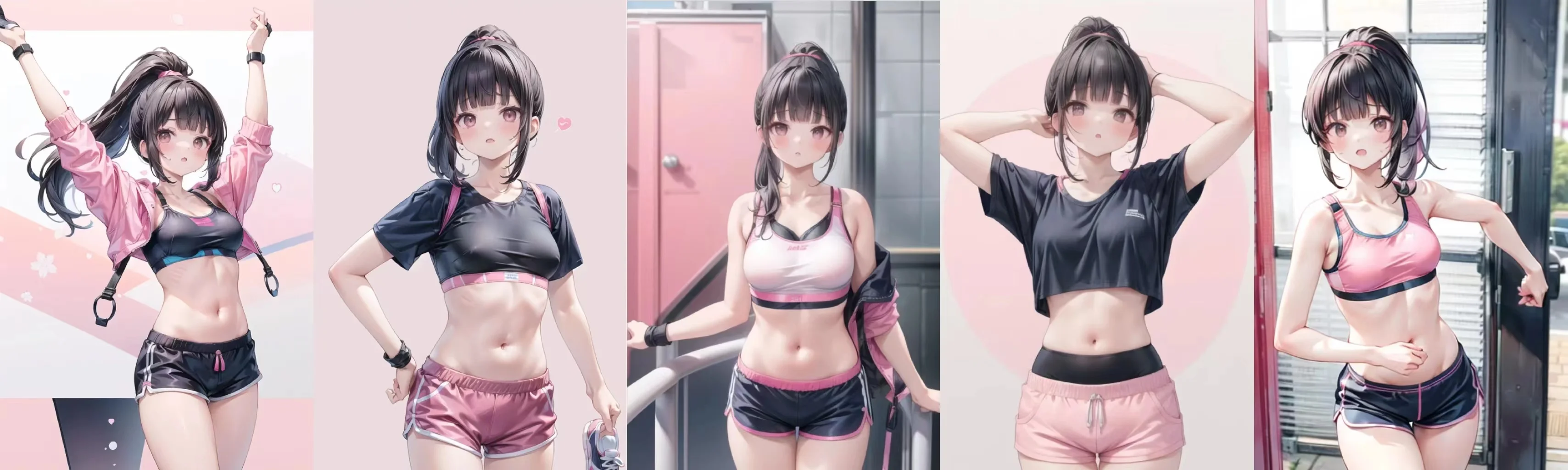
There are six pose models for you to choose from.
b. IK & Rotation
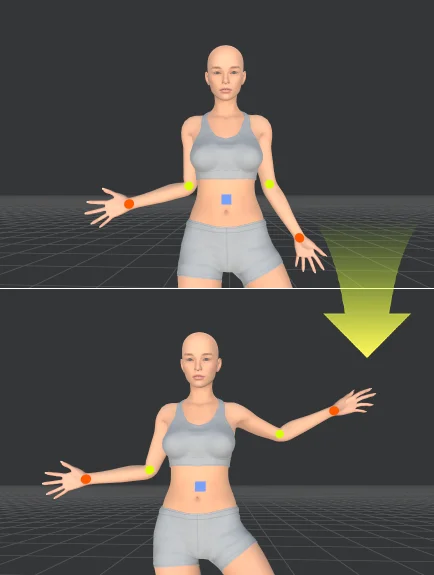
'IK' is for controling the joint placement position of the model and adjust the overall pose.
Just click those colorful dots to achieve your adjustment.
'Rotation' is for further adjusting the detailed posture of your model by clicking those blue dots.
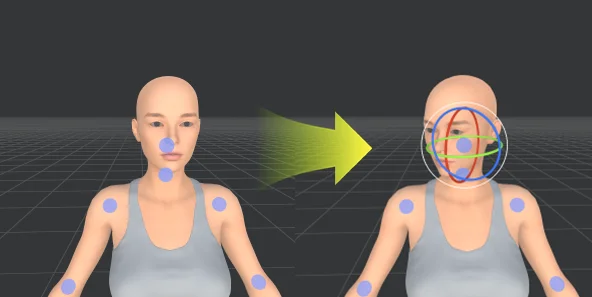
You need to know that:
Red circle is for twisting the angle of model back and forth, the blue one is to twist left and right, and the green circle is to rotate the body. The white circle at the very edge is to adjust the angle of the joint.
c. Ratio
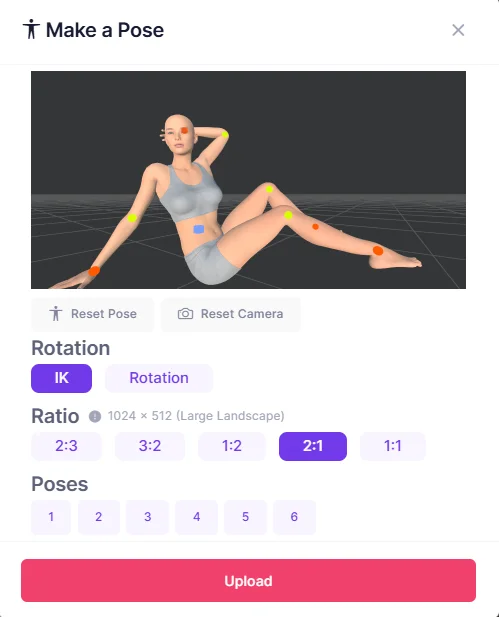
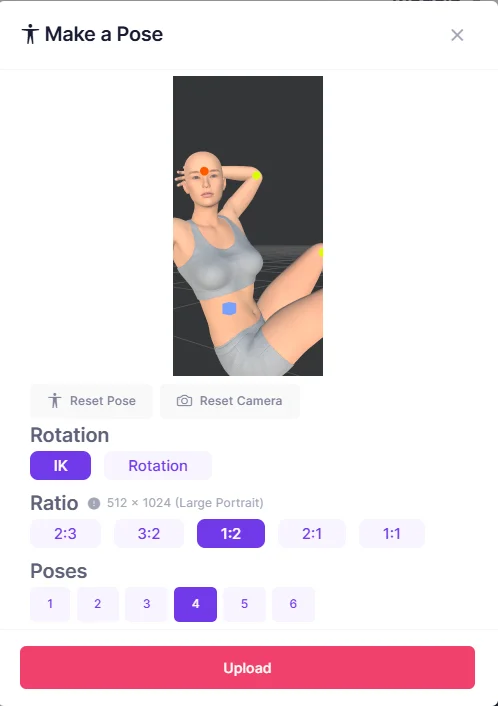
'Ratio' is for selecting appropriate composition according to the posture of the model.
Yes: Lying pose for 2:1 ratio
No: Lying pose for 1:2 ratio
d. Reset Pose & Camera
If you have an error while adjusting the pose, you can click 'Reset Pose' to return the initial pose, and the 'Reset Camera' is for returning the original view.
2. Practice cases
Case one: 'Upload'
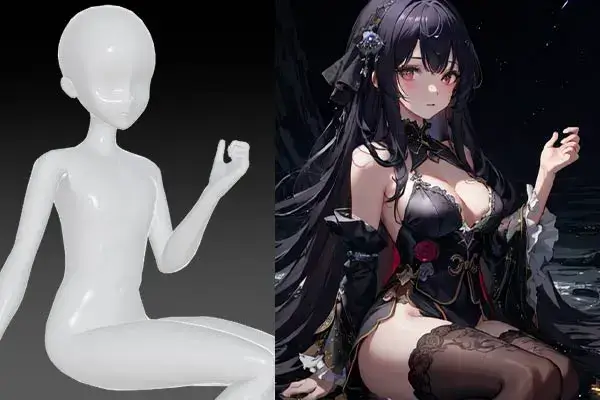
Generating the right image based on the pose of the left character.
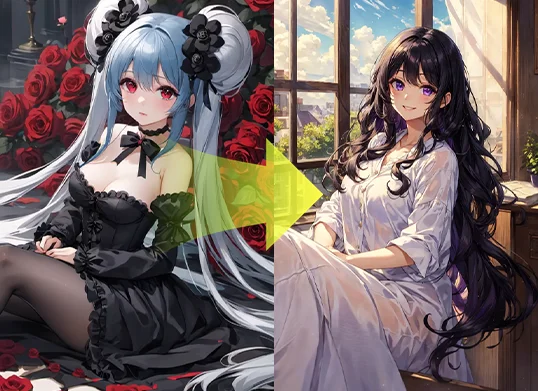
Step 1:
Upload your image
Step 2:
Choose model and lora
Step 3:
Write prompts to describe the appearance of character
Step 4:
Click 'Generate'
Case two: 'Make Pose'
a. Step 1: Click 'Make Pose' and pick one you like
As an example, we choose pose '4'.
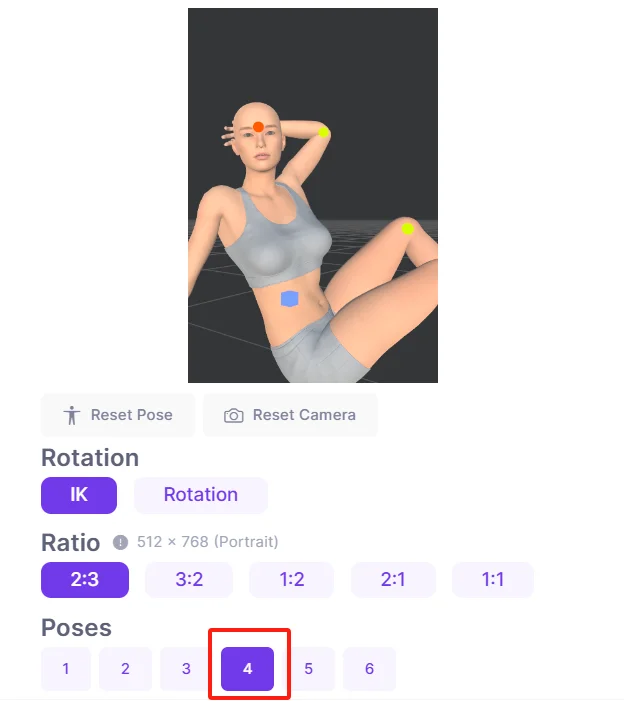
b. Step 2: Adjust poses (optional)
By moving your mouse, you can zoom in or out of the pose model. Then click on the colorful dots to adjust the details of the pose. Also you need to pick the right ratio for the pose.
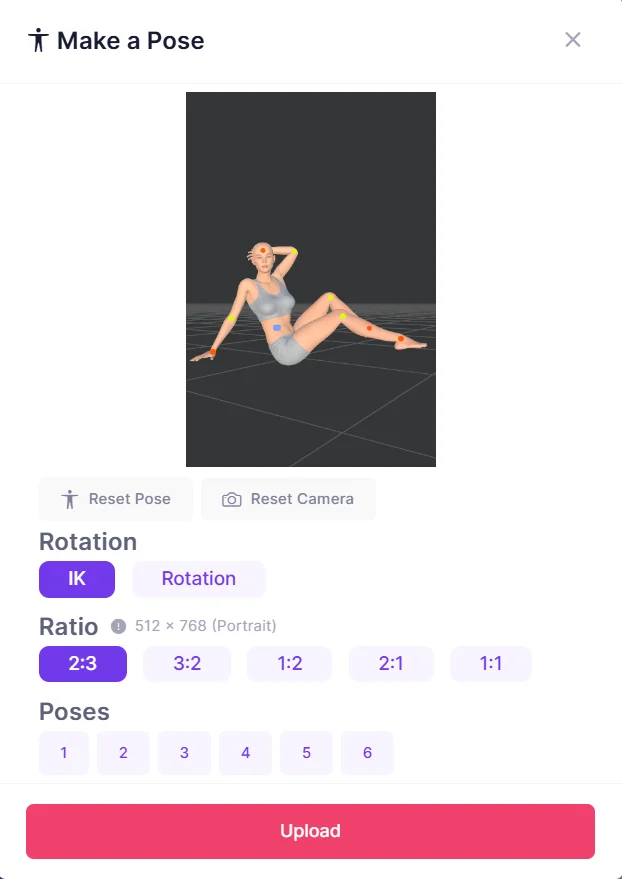
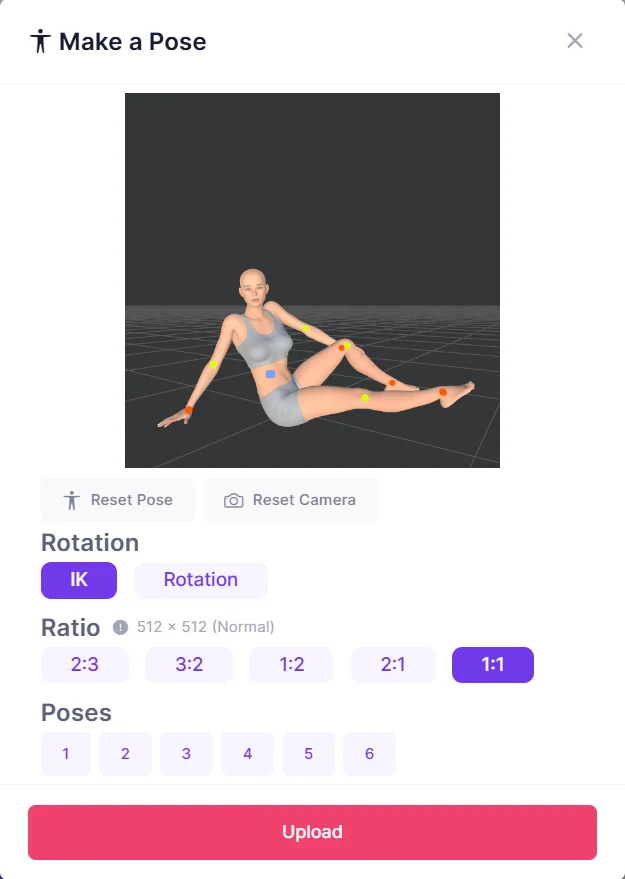
c. Step 3: Write prompts
You could just write prompts to describe the appearance of your character.
d. Step 4: Choose model and lora
Model and lora is for adding more detaills of your character's appearance.
e. Step 5: Click 'Generate'
Now you can get a delicate image based on the pose '4'.
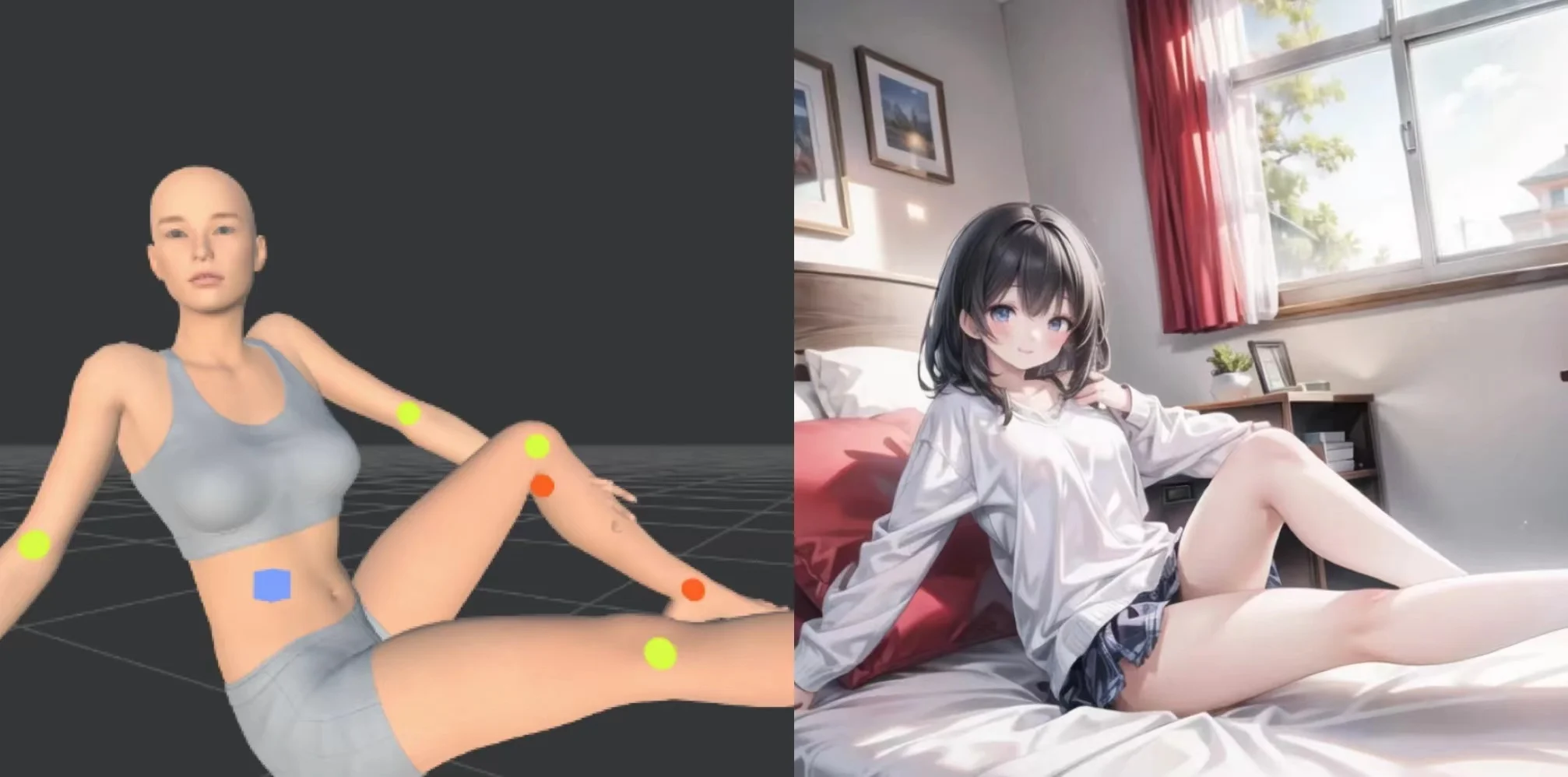
3. What can do with Pose to Image?
What can do with Pose to Image?
In traditional Pose to Image feature, AI generates images based on the reference character's pose, and we could not make any changes of the original pose.
But now, by making poses on your own, you even could create 100+ poses for your character and precisely control the joint placement of your character.
Without limitations of descriptive prompts
We all know that AI generates images based on prompts. However, describing hand and body poses can sometimes be too complicated. This complexity often leads to AI generating inaccurate hand poses.
Now, you no longer need to describe the poses. Simply write some prompts to define the appearance of your character, which is both useful and convenient.
4. What can't do with Pose to Image?
Setting poses that go against the human body
You can adjust the head posture by turning the green circle around, but that doesn't mean you could rotate it impractically.
No:
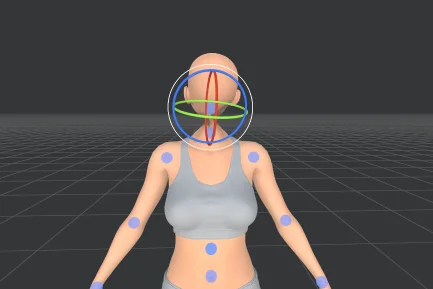
Detailed poses of hand
All the blue dots is for the joint placement position, but for the finger joints and the specific postures of hand, we can't support this now.
5. Conclusion
Hopefully you've mastered Pose to Image feature of AnimeGenius. Just use it to create more poses for your characters.
Customize poses as you want in AnimeGenius
Enjoy it!