

 ART GENERATOR

 EXPLORE



 TUTORIAL
How To
Learn how to use AnimeGenius AI tool with detail text & video tutorial.
Use Case
Find the hidden features of AI text-to-image generators and learn how to master AI for creative uses.
Prompt Guide
We provide detailed prompt tutorials to help you use AI like a pro

Parameter
Learn the usage of Stable Diffusion parameters and get more professional AI skills in generation.
The Ultimate Guide to Stable Diffusion Steps Parameter
Stable Diffusion of the most pivotal being the steps parameter, representing the sampling steps. The stable diffusion steps parameter is a critical technical indicator widely employed across various fields. This article will introduce you to the meaning, function, impact, and adjustment methods of the steps parameter. The guide is tailored for designers, scientists, and professionals interested in the stable diffusion steps parameter, aiming to provide comprehensive guidance.

What is steps parameter?
The Stable Diffusion Steps Parameter is a parameter that controls the number of iterations in the generation of images through stable diffusion. Iteration refers to the repetitive cycle starting from generating random noise based on text input. Each step eliminates some noise, and with an increase in the number of iteration steps, higher-quality images are produced. When the desired number of steps is completed, the iteration stops, yielding the final image. Therefore, selecting an appropriate number of steps is crucial.
How does the steps parameter impact the image?
The range of values for the Stable Diffusion Steps Parameter varies from 15 to 100. Smaller values result in a more blurred image, while larger values lead to a clearer image. The impact of the Stable Diffusion Steps Parameter values is primarily reflected in the following aspects:
- Image Clarity: Larger step values result in a clearer image, while smaller step values lead to a more blurred image.
- Image DetailsLarger step values preserve more details in the image, while smaller step values may result in some loss of details.
- Image Generation Time: Larger step values contribute to a longer image generation time, while smaller step values lead to a shorter image generation time.
Best Practices for Stable Diffusion Steps Parameter
AnimeGenius is an application software based on the stable diffusion engine, specializing in the anime industry. Below are the best practices I have employed in testing stable diffusion steps parameters using AnimeGenius.
- Prompt: Golden retriever portrait, soft colors
- Nagative: (worst quality, low quality:1.4), (greyscale, monochrome:1.1), cropped, lowres , username, blurry, trademark, watermark, title, multiple view, Reference sheet, curvy, plump, fat, strabismus, clothing cutout, side slit,worst hand, (ugly face:1.2), extra leg, extra arm, bad foot, text, name, badhandv4, easynegative, EasyNegativeV2, negative_hand, ng_deepnegative_v1_75t
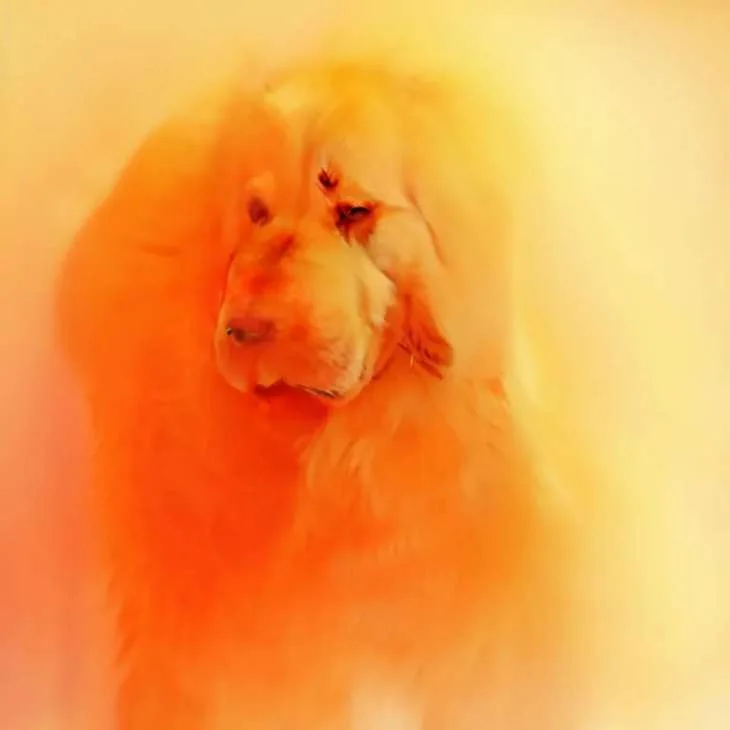
Steps: 3
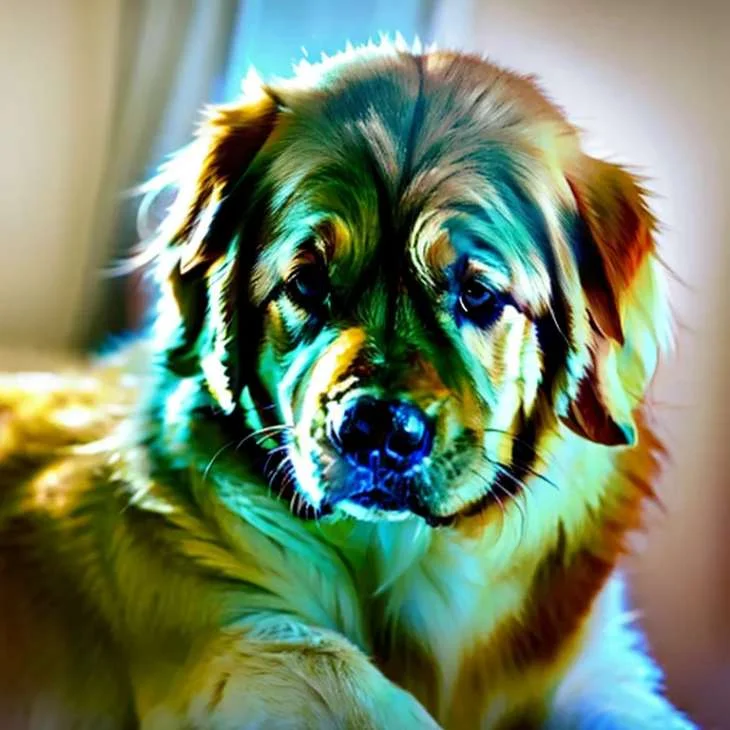
Steps: 5
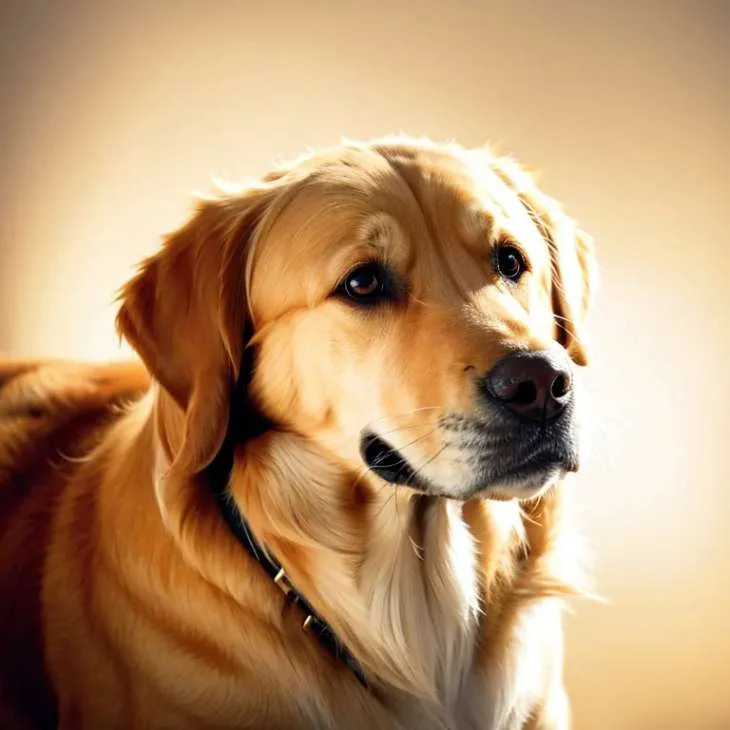
Steps: 10
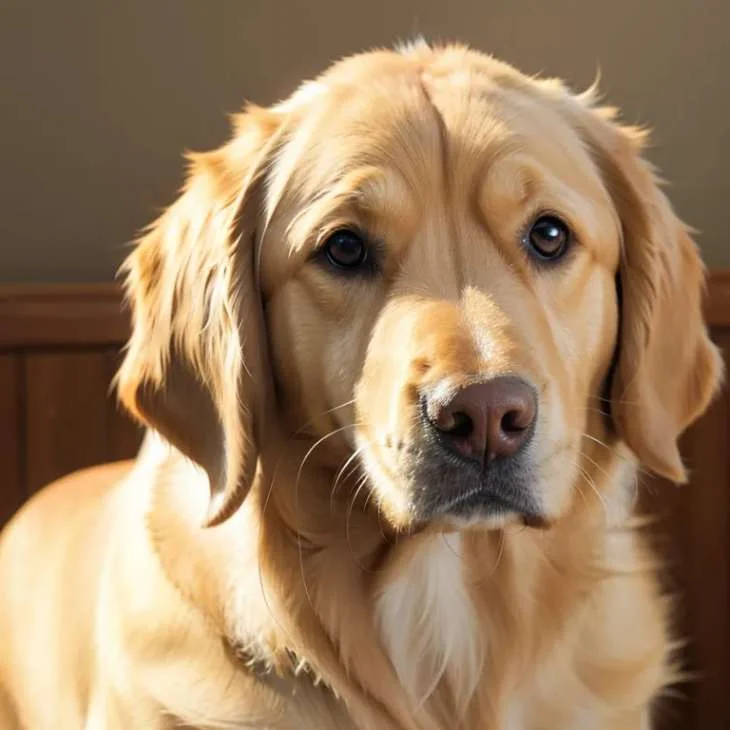
Steps: 15
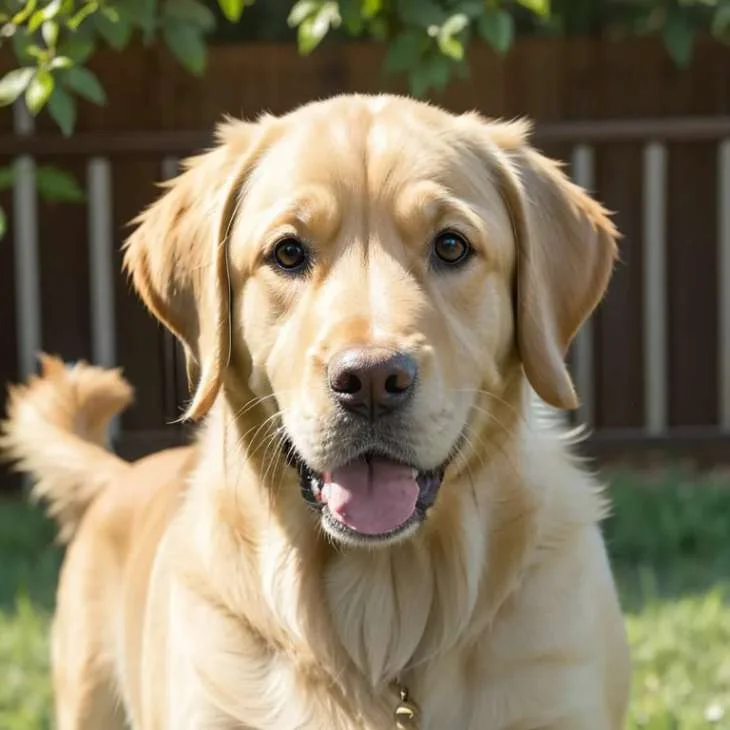
Steps: 25
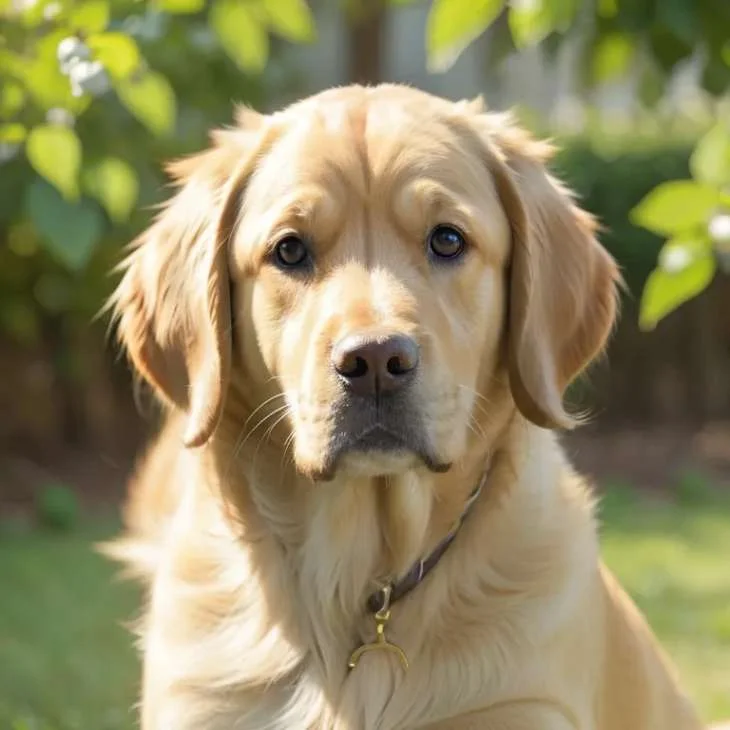
Steps: 50
How to choose the value for the Stable Diffusion Steps Parameter?
Choosing the appropriate value for the Stable Diffusion Steps Parameter depends on several factors:
- Purpose of Image Generation: If the goal is to generate a clear image, larger values for the steps parameter can be used. For creating a blurred image, smaller values may be preferred.
- Detail Requirements for Image Generation: If the intention is to generate an image with intricate details, larger values for the steps parameter are suitable. For images where details are not crucial, smaller values may be used.
- Time Constraints for Image Generation: If there's a need for quick image generation, smaller values for the steps parameter can be chosen. If there's no urgency and time is not a limiting factor, larger values may be employed.
Here are some examples illustrating of Stable Diffusion Steps Parameter values:
- Steps value between 1-15: The image is relatively blurry.
- Steps value between 15-25: The image is quite clear and of good quality.
- Steps value between 25-45: The image quality is very high and includes texture.
- Steps value between 45-75: Little variation is observed.
Summary
The steps parameter is a crucial factor in Stable Diffusion, impacting image quality, details, and style. Choosing the right number of steps depends on your objectives and preferences. Generally, 25 steps are a good starting point. You can adjust the steps by adding a colon and the desired number after the text prompt or use shortcuts for quick adjustments. Hopefully, this article helps you use Stable Diffusion more effectively to generate the images you desire.